How to Back Up Your CA Notes and Avoid Losing Important Study Files
Protect your CA notes with a simple backup system. Learn how to organise digital files, use cloud and offline copies, and recover important study material with…
In this article(15 sections)ShowHide
Good CA notes should make difficult topics easier to understand and revise, not create more work every time you study. how to Back Up Your CA Notes and Avoid Losing Important Study Files is a practical part of building a dependable study system, especially when classes, self-study, and exam practice all generate material that needs to stay organised.
This guide explains a clear approach that students can adapt to their subject, CA level, and preparation stage. Studycaller is included as part of an exam-focused routine, while syllabus-specific requirements and amendments should always be checked against the relevant official material.
Why a backup system belongs in your study plan
CA preparation often involves months of notes, solved questions, scanned pages, formula sheets, class recordings, and test analysis. Losing these files because of a damaged phone, failed laptop, accidental deletion, or a synchronisation problem can waste valuable study time. The risk is easy to ignore until a device stops working or a folder disappears.
A backup system reduces the chance that one technical problem will remove every copy of your work. It does not need to be complicated or expensive. The important part is having more than one reliable copy, knowing where each copy lives, and checking that files can actually be opened. A backup you have never tested may not help when you need it.
Identify which files need protection
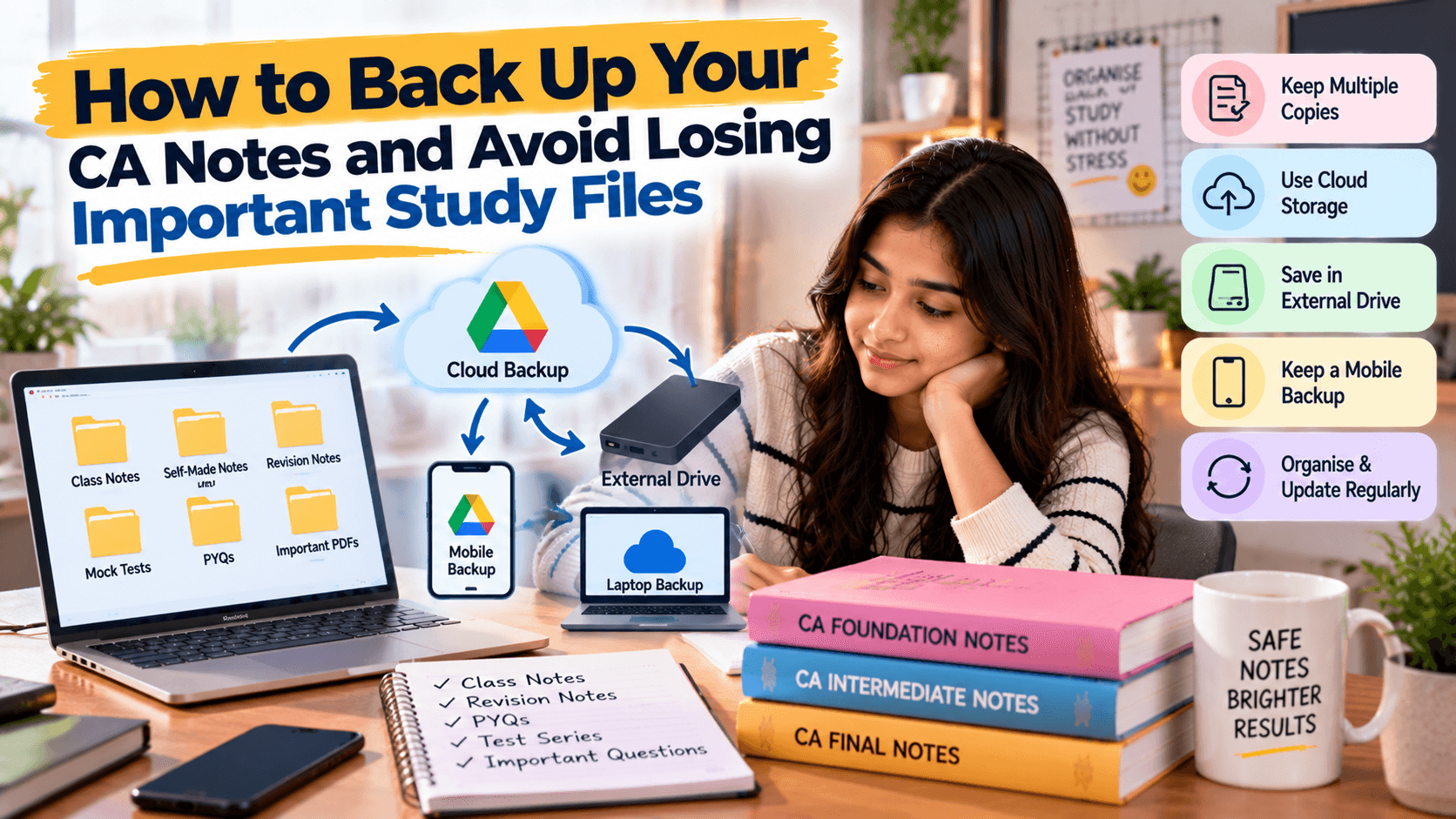
Start by listing the material that would be difficult to recreate: your own chapter notes, annotated study PDFs, solved illustrations, mock-test answers, error logs, schedules, and any original files you have created. Class recordings and downloaded material may have different storage or access rules, so check whether you are permitted to keep a local copy before backing them up.
Separate essential files from items that can be downloaded again. Prioritise original work, corrections, and personal annotations because those often contain the most value. Keep the list short and practical. You can expand it later once the core backup routine is working. The first goal is to protect the files that would cause the biggest disruption if they vanished.
A simple backup plan
| Step | Action | Check |
|---|---|---|
| Organise | Group files by subject and chapter | Names are consistent |
| Copy | Back up to a separate location | Copy is complete |
| Verify | Open a sample restored file | Content is readable |
| Repeat | Follow a weekly schedule | Recent changes are included |
Use a simple two-location rule
Keep one working copy on your main device and at least one separate backup in another location. That second copy might be a trusted cloud storage account, an external drive, or another device. For important files, consider having both a cloud copy and an offline copy. A second folder on the same laptop is not a proper backup because the same failure could affect both.
Choose a method you can maintain. Cloud storage can synchronise files automatically, while an external drive gives you an offline copy that does not depend on an internet connection. Each option has trade-offs. Cloud accounts need secure access and enough storage; external drives need careful handling and regular updates. Use the approach that fits your devices, connectivity, and budget.
Organise folders before backing them up
A clear folder structure makes backups easier to check and files easier to restore. You might organise by CA level, subject, chapter, and file type. Keep a consistent naming pattern, such as subject-chapter-topic-version date. Avoid vague labels like “new notes” or “final final,” which make it hard to know which file should be restored.
Do not place every file in one large folder if you can group them sensibly. Keep a simple index or contents document for important collections. If a file is stored in several locations, decide which copy is the master version. Clear organisation reduces accidental overwriting and means you can restore a specific chapter instead of searching through an entire backup.
Understand syncing versus backup
Synchronisation and backup are related but not identical. Syncing keeps files similar across devices, which is convenient when you move between a laptop and phone. However, accidental deletion or an unwanted edit may also sync to every connected device. A backup system should give you a way to recover an earlier version or restore a separate copy.
Check whether your storage service provides version history, a recycle bin, or recovery options, and learn how long deleted files remain available. Do not assume these features are unlimited or enabled by default. For important notes, maintain a separate periodic copy that is not immediately affected by changes on your working device.
Protect accounts and devices
A backup is only useful if you can access it. Use a strong, unique password for the account that stores your notes, enable multi-factor authentication where available, and keep recovery details current. Avoid sharing account passwords with classmates. If you use a shared computer, sign out and do not leave sensitive files in a public downloads folder.
Keep your phone and laptop updated, use a screen lock, and be cautious with unknown attachments or applications. Malware, account compromise, and accidental sharing can put study material at risk. If you use an external drive, store it safely and disconnect it after the backup is complete. A separate copy is more valuable when it is not constantly exposed to the same risks as your main device.
Set a repeatable backup schedule
Back up new or changed notes after a meaningful study session or at a fixed time each week. Automatic backup can reduce the chance of forgetting, but still review whether the expected folders are included. If you create many files daily, a more frequent routine may be appropriate. The best schedule is one that matches how quickly your material changes.
Keep the process short. A weekly checklist could include checking the main notes folder, confirming the cloud sync status, copying essential files to offline storage, and opening a sample file from the backup. If an exam or device repair is approaching, make an additional backup before making major changes. Do not wait until the laptop shows a warning or storage becomes full.
Test recovery instead of assuming it works
Every so often, restore a sample file to a temporary folder and open it. Check that the content, formatting, images, and tables are intact. For a spreadsheet, verify that key sheets and formulas remain present. For a document, scroll through several pages. This simple test can reveal incomplete uploads, corrupted files, or a backup process that excludes certain file types.
Keep the recovery process understandable. Write down where the backup lives and how to access it, but never store passwords in an unprotected document beside the files. If you have multiple devices, confirm that you can access your notes from another device before relying on that option. Recovery should be a procedure you know how to follow, not a guess made during an emergency.
Avoid common backup mistakes
Common mistakes include relying on a single device, assuming sync equals backup, forgetting to include downloaded files, allowing storage to fill up, and never testing recovery. Another risk is overwriting the only good copy with a damaged or incomplete version. Use versioned filenames for major revisions and retain a recent known-good copy before reorganising large folders.
Do not back up everything indiscriminately if it creates confusion or violates access rules. Focus on permitted material and files you need to preserve. Check that storage accounts are yours to access and that your backup does not expose personal information. A small, organised collection of current notes is more useful than several unlabelled copies that nobody can identify.
Make backups part of your exam workflow
Backup routines are especially important before a revision phase, a device reset, a software update, or a major folder reorganisation. Save a copy before merging notes or deleting old drafts. When the exam is close, avoid experimenting with unfamiliar storage tools. Use the system you have already tested so technical maintenance does not interrupt revision.
After each mock test, store the paper, your answer, feedback, and error analysis in the appropriate subject folder. This makes the material easier to revisit and protects your learning history. A consistent archive can show which mistakes repeat across attempts, while a dependable backup ensures that this information remains available even if your main device fails.
How Studycaller fits into a protected study routine
Practice resources and your own test analysis can become important study files, so include them in your backup plan where permitted. After a test, save the answer attempt, note the key mistakes, and back up the updated error log. This gives you a record of progress and a practical list of revision priorities.
Studycaller can be part of an exam-focused preparation routine alongside your class material and personal notes. Keep access details secure and follow the relevant platform terms for any material you store. The aim is to protect your own study work, reduce avoidable disruption, and spend more time learning rather than rebuilding files that could have been backed up.
A quick recovery plan if a file is missing
If a study file disappears, avoid saving new files over the same folder until you have checked the recycle bin, recent files, cloud version history, and backup location. Search by part of the file name and verify the folder path. If the file was synced, check whether a deletion or rename was copied to other devices. Recover the latest known-good copy first, then compare it with any newer versions you can still access.
Once the file is restored, open it and check its contents before deleting other copies. Make a fresh backup and identify why the loss happened, such as an accidental move or a sync issue. Update your folder structure or routine to reduce the chance of repetition. A calm recovery process is more effective than creating multiple new copies without knowing which one is complete.
Prepare for device changes before they happen
If you are replacing a laptop or phone, moving to a new account, or reinstalling software, plan the transfer before starting. Confirm which folders contain original notes, check that cloud access works, and copy essential files to a separate location. Do not assume that a migration tool will preserve every file type, annotation, or folder structure. Keep the old device or copy unchanged until the transfer has been checked.
After moving the files, open several documents from different subjects and confirm that tables, scanned pages, and attachments are intact. Check that file names and folder paths remain understandable. Once the new setup is working, create a fresh backup from the verified collection. This small transition checklist reduces the risk of discovering a missing chapter when you are ready to revise.
Conclusion
A dependable backup routine protects the work you have built throughout CA preparation. Keep separate copies, organise files clearly, secure your accounts, and test recovery before an emergency. A short regular check can prevent a technical problem from turning into a major interruption.
Notes students love
Free notes from the Studycaller library, picked for this article.
Amendment Notes · CA Foundation Business Economics
Full economics handwritten notes by CA Parag Gupta sir
Heet Hingrajiya 209 68.6k
Detailed Notes · CA Foundation Business Economics
"Hi guys! Maine kuch naya try kiya Economics me — ek alag andaaz, ek alag soch... Chapter 1: Nature & Scope of Business Economics – Unit 1 I
مُحَمَّد 126 14.7k
Chart Book · CA Foundation Business Laws
Chpter 3 the sale of goods act Unit. 1 only. Full of story line Concept clarity and funny stories punch lines
مُحَمَّد 118 14.2k
Amendment Notes · CA Foundation Business Laws
Nia 1881 story line pdf Coverage total 11 Concept
مُحَمَّد 117 12.5k
Frequently asked questions
What is the safest way to back up CA notes?
Keep the working copy on your main device and at least one separate copy in another location. For important files, use both cloud storage and a periodic offline backup.
Is cloud sync the same as backup?
Not always. Sync may copy accidental deletions or unwanted edits across devices. A separate backup or version history helps you recover an earlier, reliable copy.
How often should I back up study files?
Back up after significant changes or use a fixed weekly routine. Students who create many files daily may need a more frequent schedule.
Which files should I prioritise?
Protect original notes, annotated PDFs, solved questions, test answers, error logs, schedules, and other personal work that would be difficult to recreate.
Should I use an external drive?
An external drive can provide an offline copy and help when internet access is limited. Store it safely, update it regularly, and disconnect it after backing up.
How can I check whether a backup works?
Restore a sample file to a temporary folder and open it. Check the content, formatting, images, and tables rather than assuming that a successful upload guarantees recovery.
What should I do before resetting my laptop?
Make a fresh backup, confirm that important files are present, and test a sample restore before resetting the device or deleting local folders.
How can I protect cloud-stored notes?
Use a strong unique password, enable multi-factor authentication where available, keep recovery details current, and avoid sharing account credentials.
How should I name backup files?
Use consistent subject, chapter, and version-date labels. Avoid vague names such as “final latest” and maintain one clearly identified master copy.
How can Studycaller fit into my backup routine?
Save and back up your own permitted test analysis and error logs after practice. Keep platform access secure and follow the applicable terms for stored material.